
Add a driver and give them the phone app
Add the person as an employee (licence, salary), then give them a phone login with their mobile and a PIN.
- 1
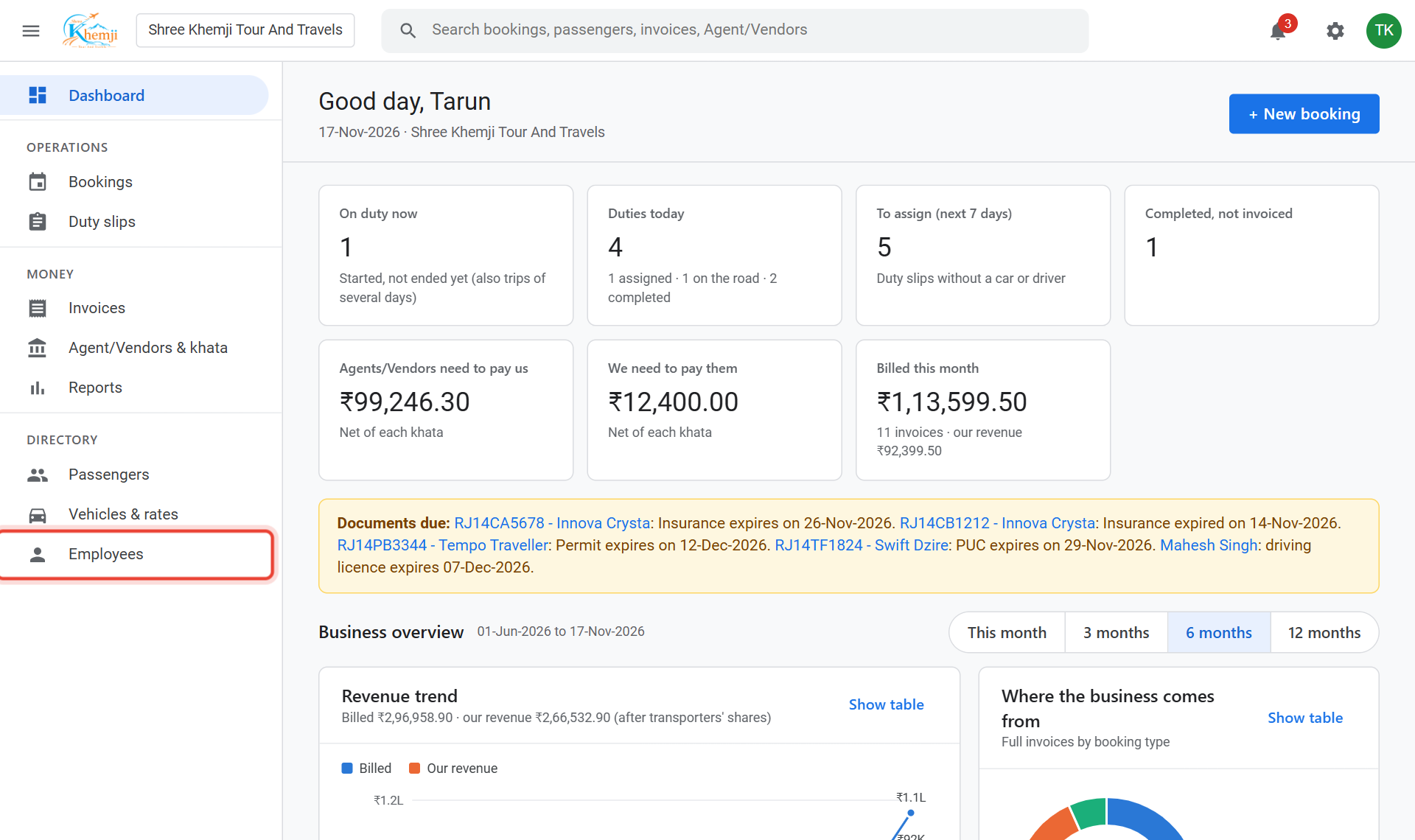
On the left menu, click Employees.
- 2
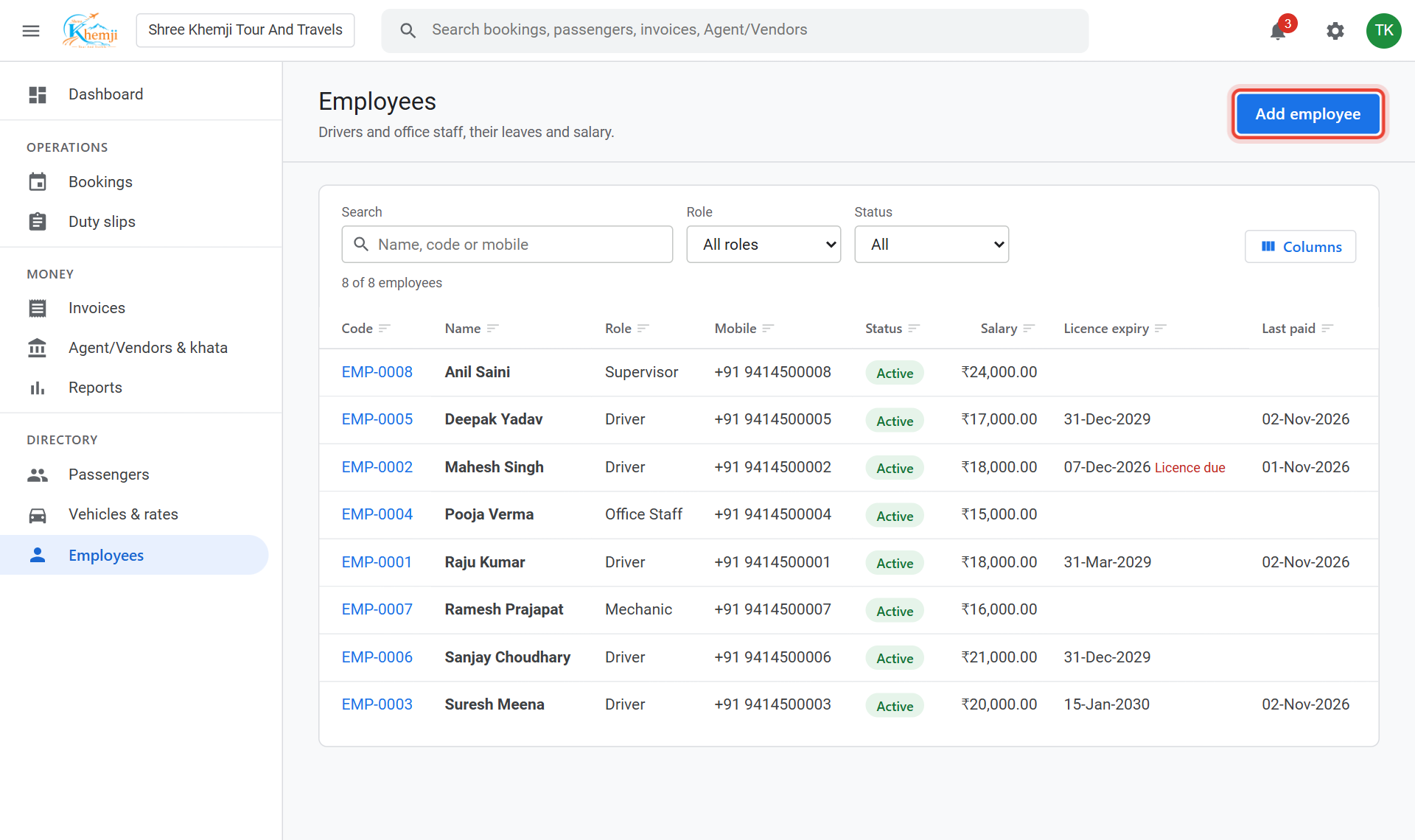
Click Add employee.
- 3
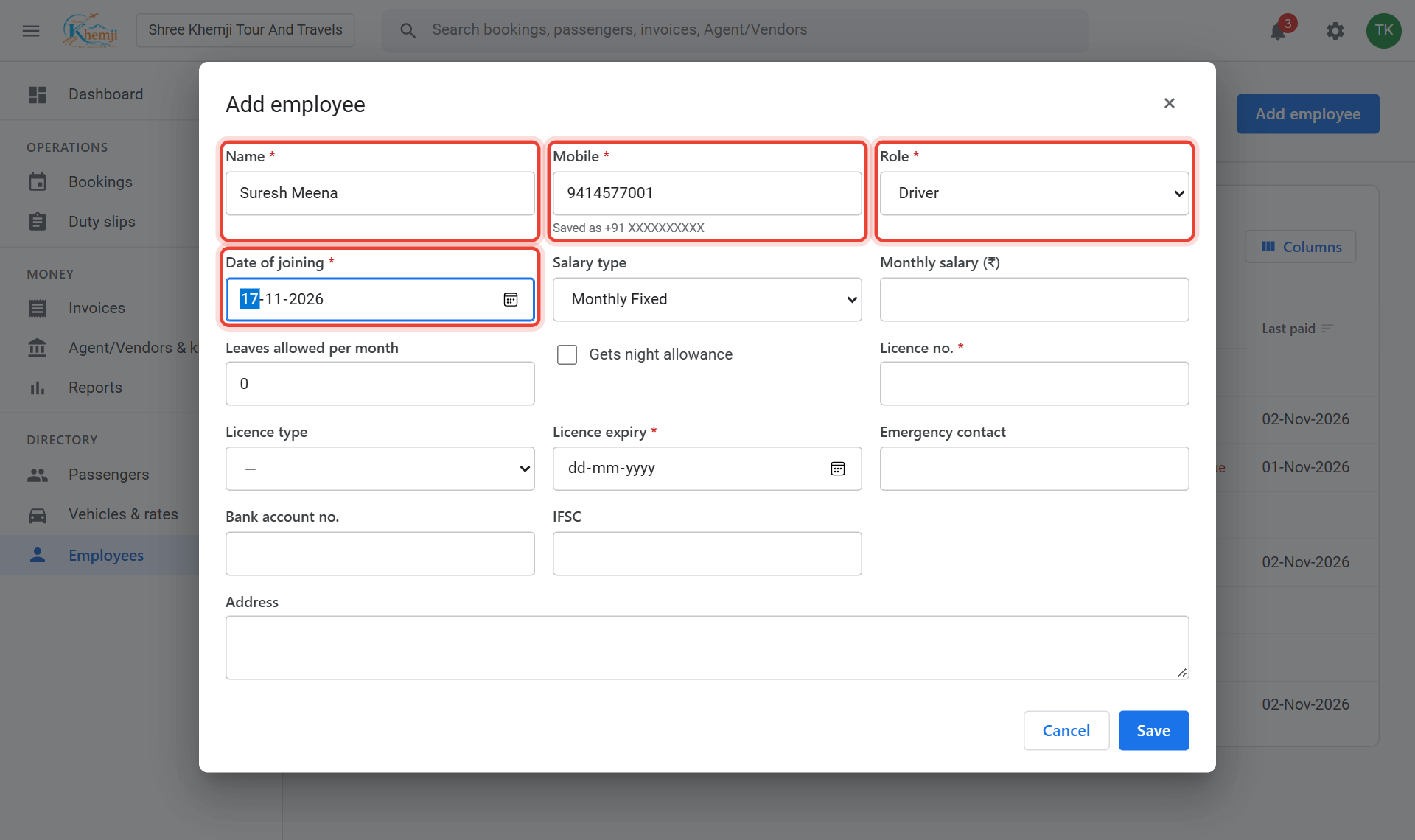
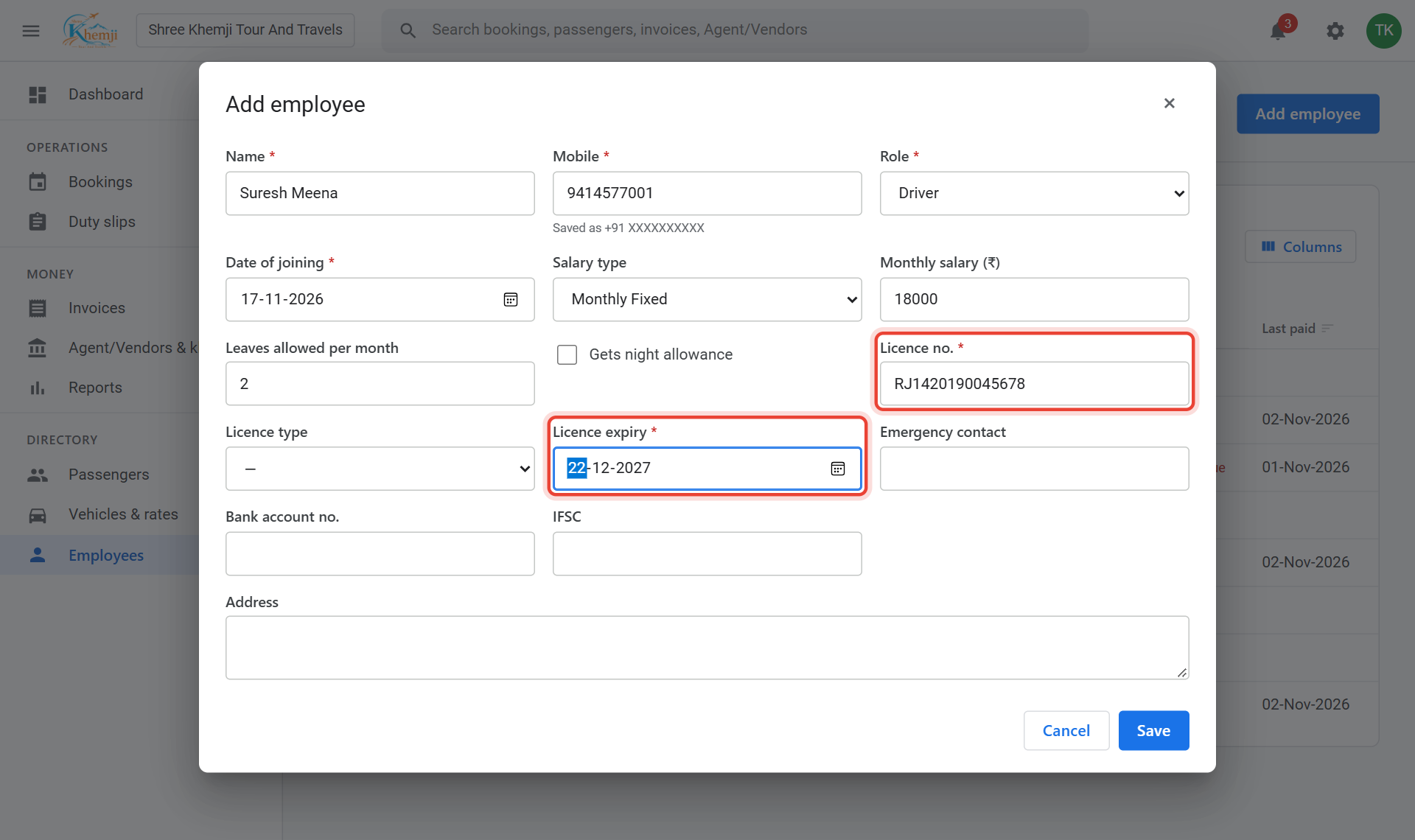
Type the Name and Mobile, choose Role = Driver, and the Date of joining.
- 4
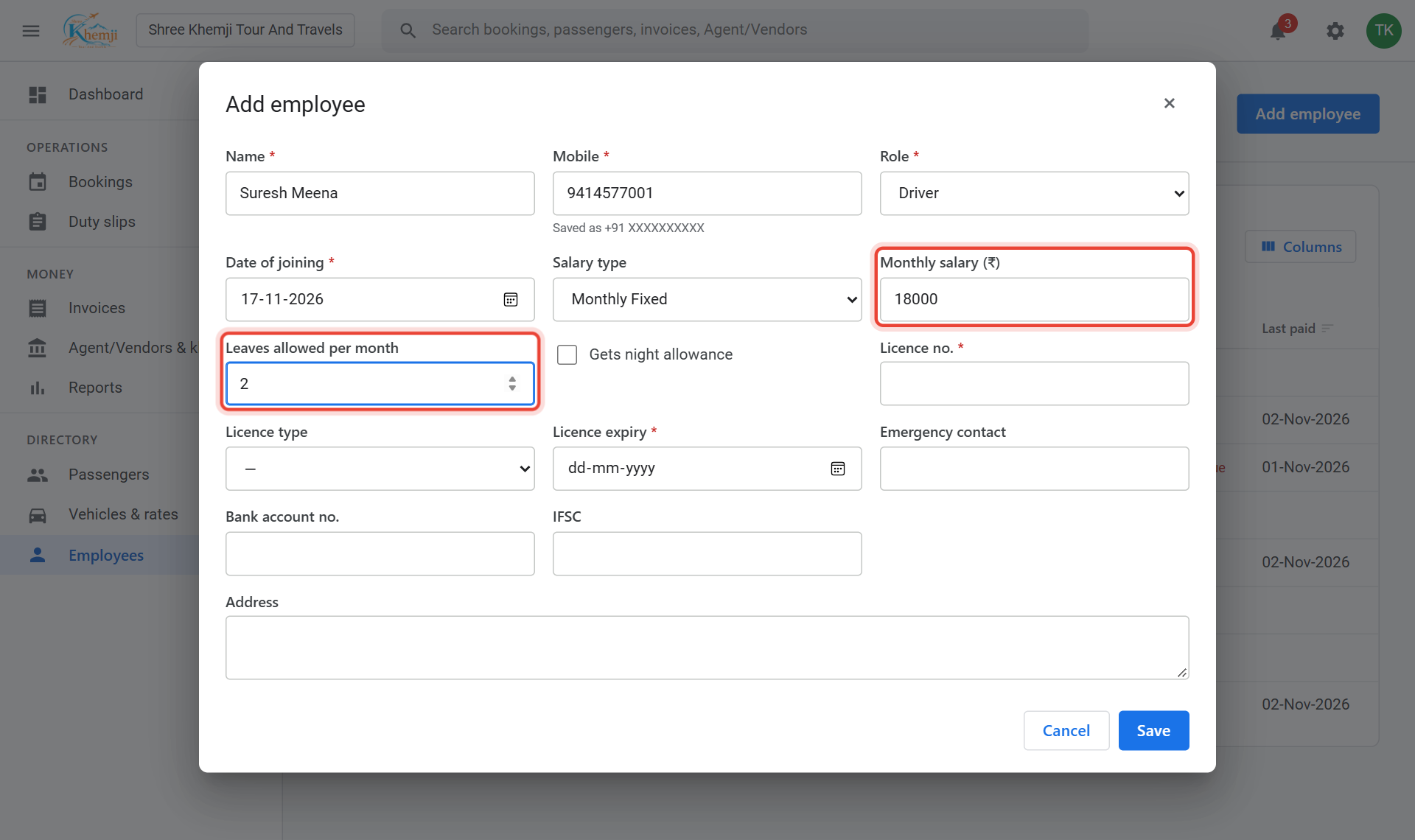
Type the Monthly salary and the Leaves allowed per month. Only leaves above this are cut from the salary.
- 5
For a driver: the Licence no. and Licence expiry. You get a reminder before it expires.
- 6
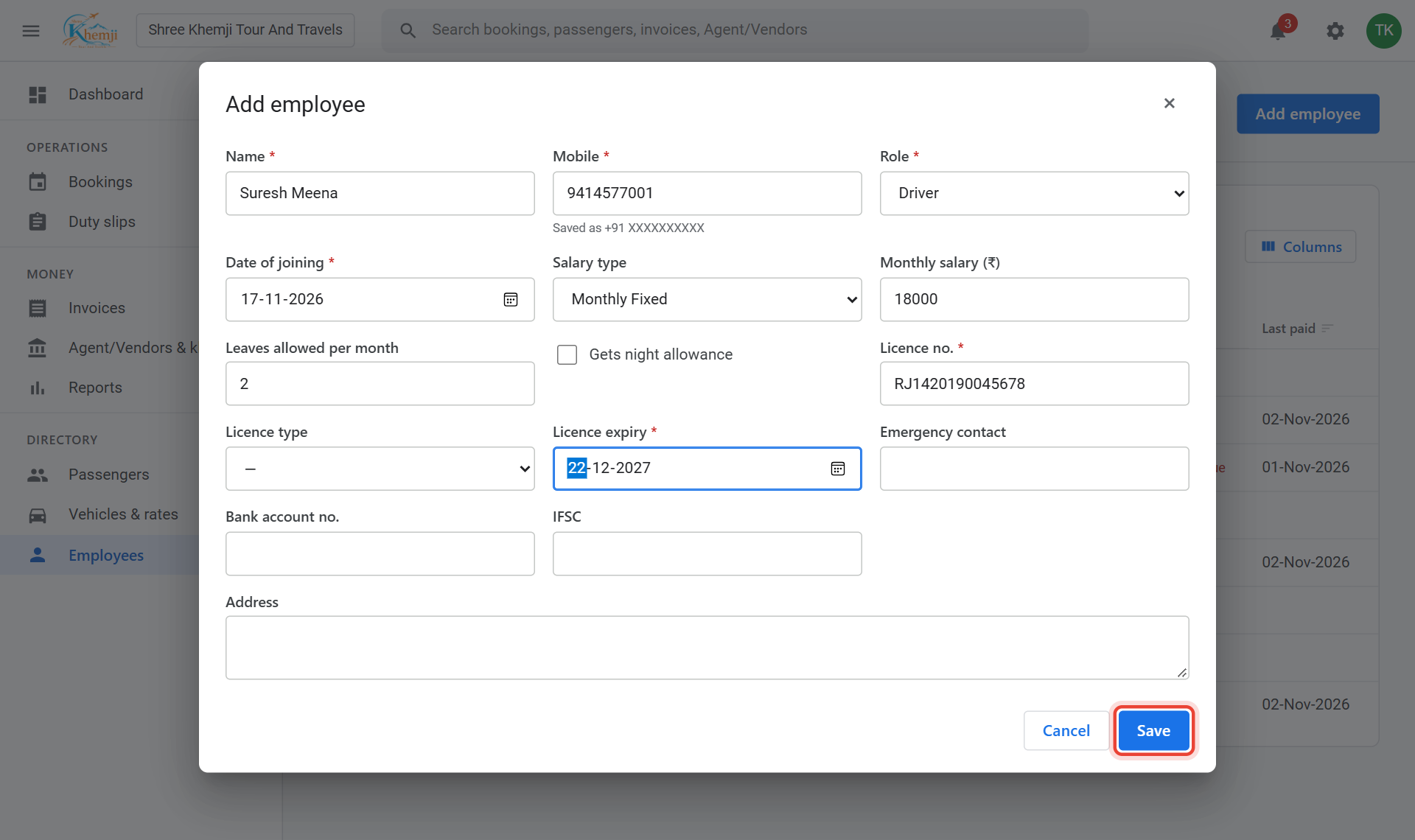
Click Save.
- 7
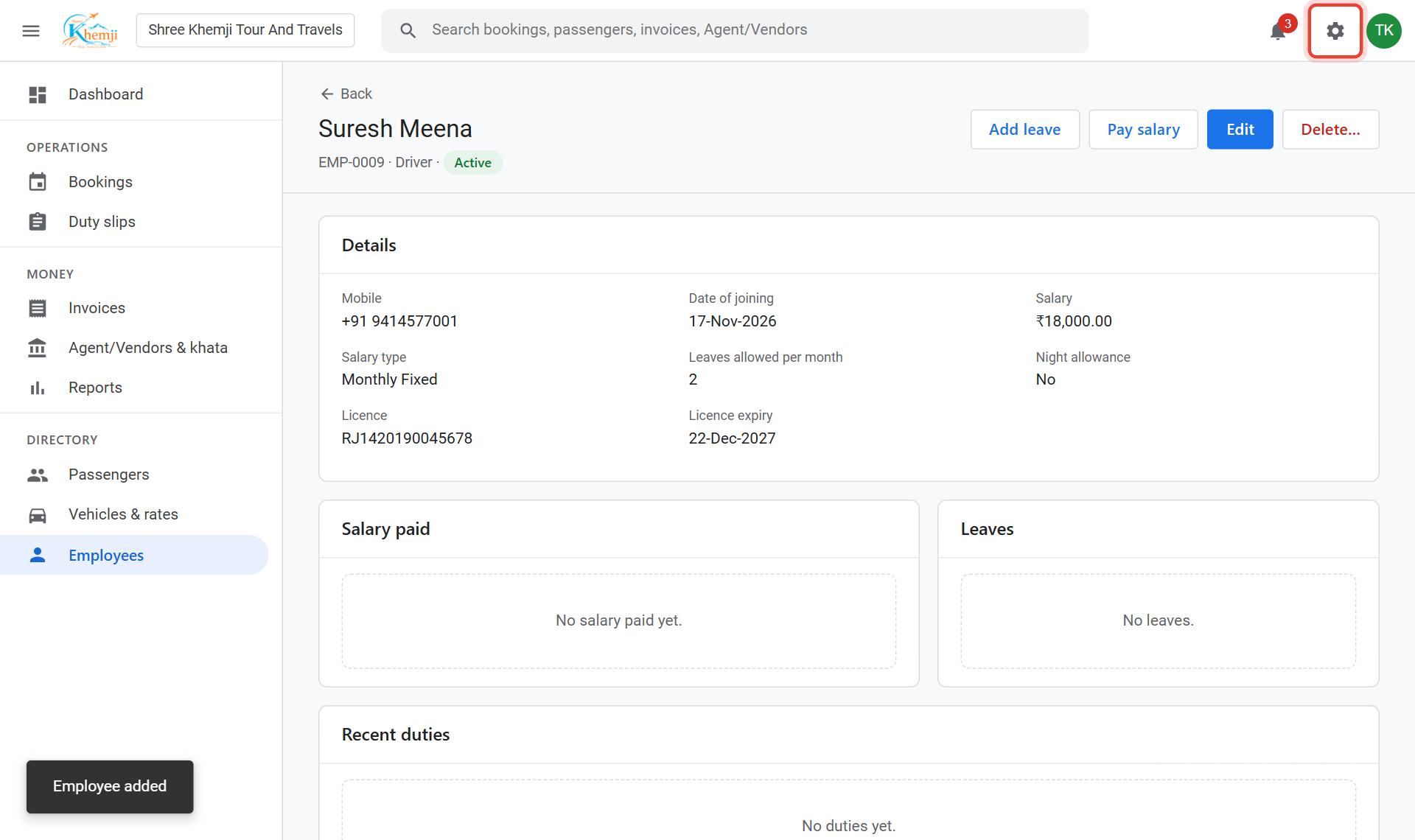
Now the phone login. Click the Setup wheel at the top right.
- 8
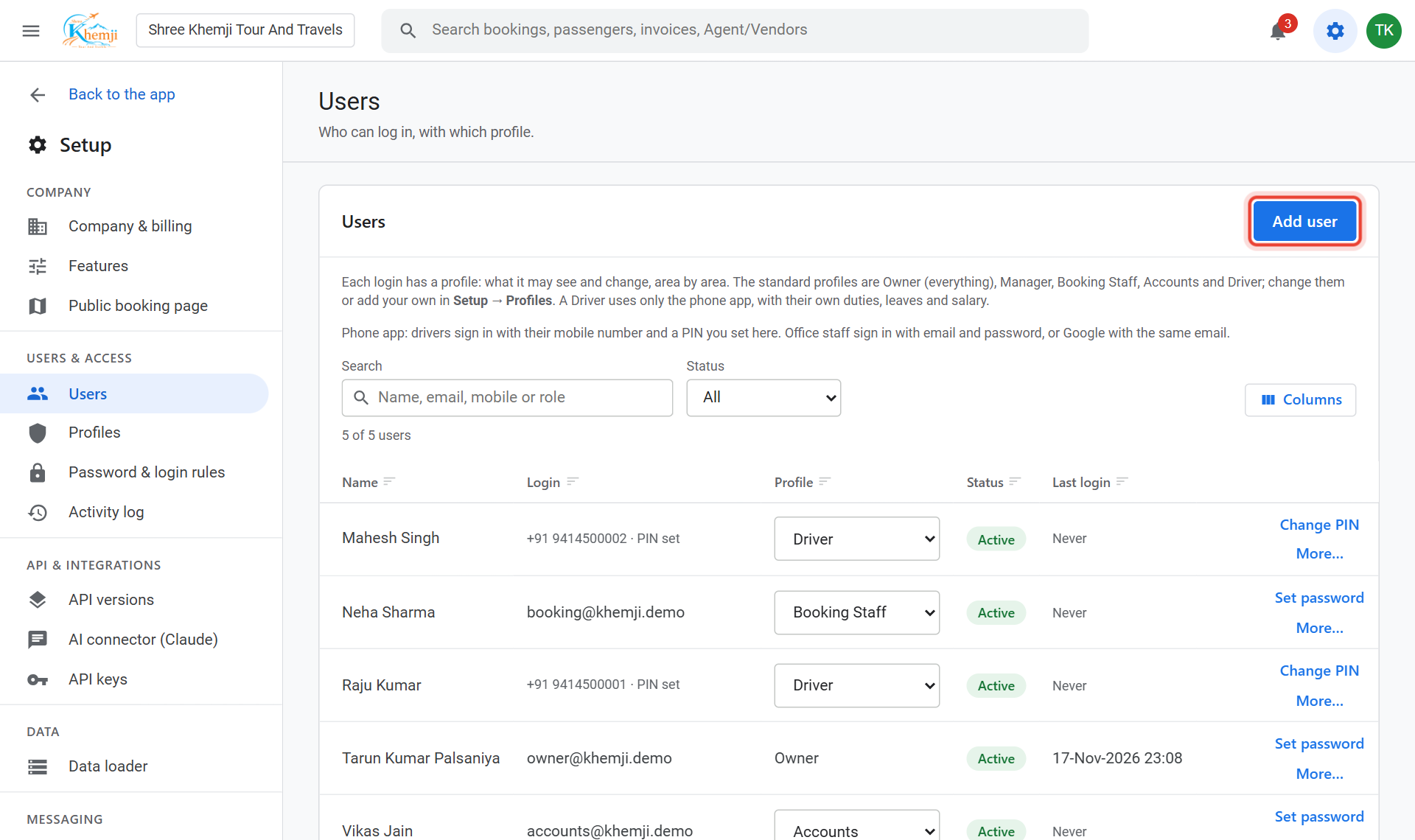
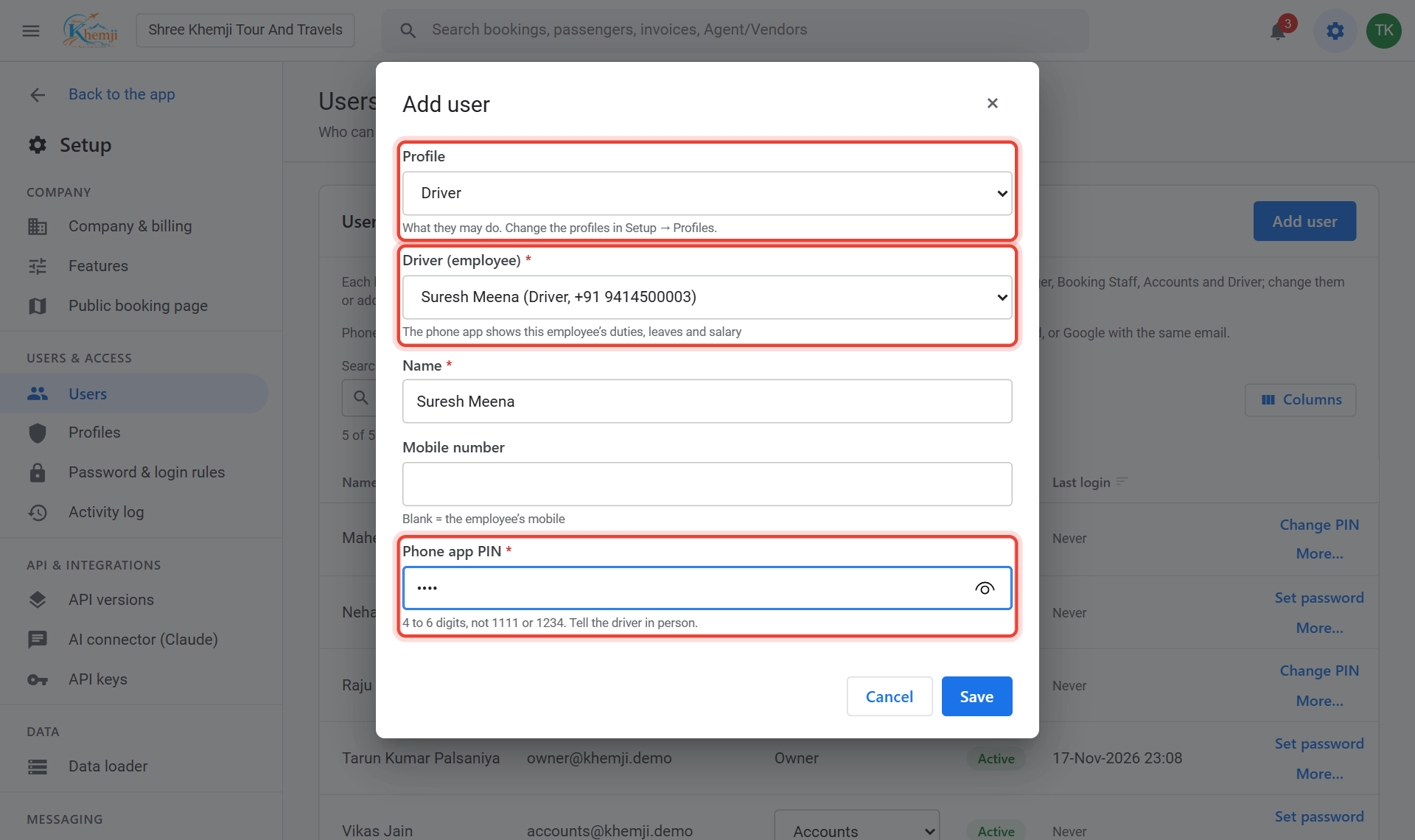
Under Users, click Add user.
- 9
Choose Profile = Driver, pick the Driver (employee), and type a Phone app PIN of 4–6 digits. Tell the driver the PIN in person.
- 10
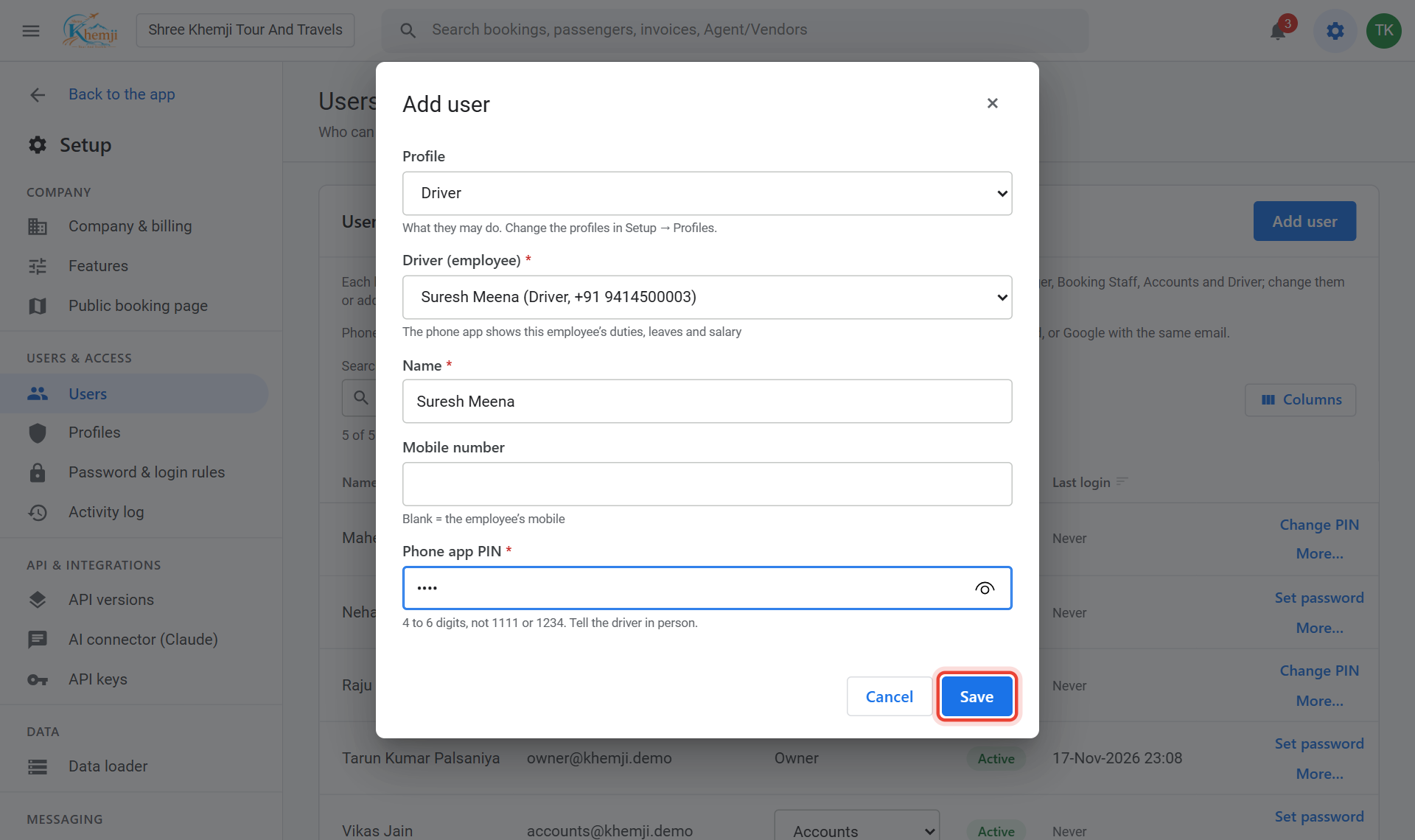
Click Save.
Done. The driver signs in to the phone app with their mobile number and this PIN. They see only their own trips, leave and salary, never fares or khata.
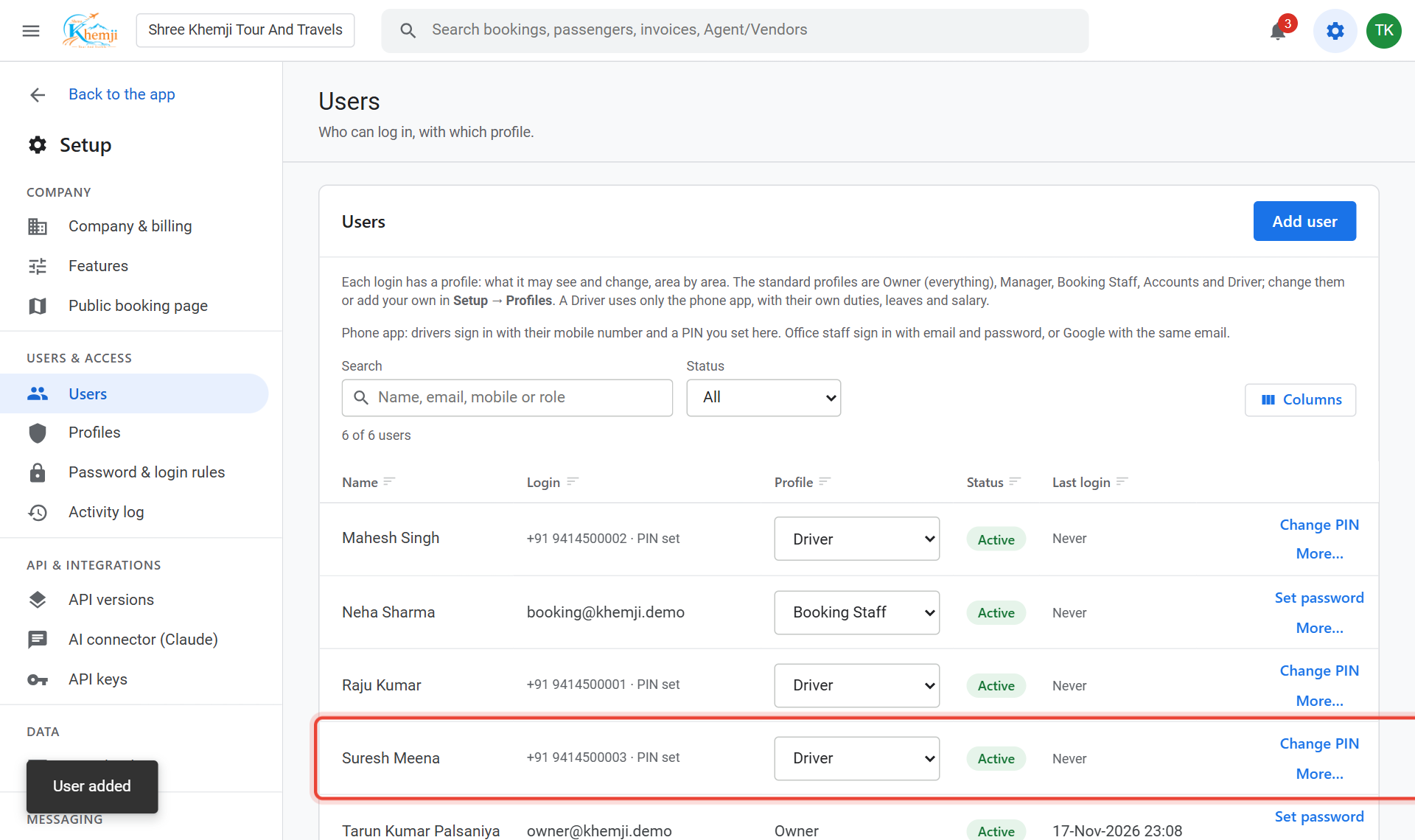
Office staff get a login the same way, with their email and a profile such as Booking Staff or Accounts.
Did this help?
Stuck on a step? We help on call and WhatsApp, in Hindi and English.